
Deploying LiveArchive with Microsoft M365 / Office365
Deploying LiveArchive with Microsoft M365 / Office365 
Deploying LiveArchive with Microsoft M365 is simple and straight forward because it relies on the proven Microsoft Exchange journaling & forwarding technology that has been in use for over a decade. This article will walk you through the process of configuring LiveArchive with M365 and some of the best practices that will ensure smooth operation.
Deployment best practices 
ExchangeDefender LiveArchive requires very little in terms of computing power in order to provide a low cost, long term archival solution for emails.
AWS Notes: If you follow our instructions for deployment of LiveArchive in Amazon Web Services the object storage S3 in AWS can be upgraded with very little to no downtime or data loss as your organization's archive grows. However, RDS instance will require some advanced planning or adjustments as your archive grows. While RDS is able to be upgraded to a larger instance, it is not automated and does not include copying data over. With this limitation in mind organizations with up to 10 employees should be able to store all of their messages within the free tier of AWS and likely will only need to upgrade the storage capacity to service up to 20 employees. Organizations between 20-50 employees may need to upgrade to a _db.t3.medium_ where organizations between 50-100 employees may need to upgrade to a _db.t3.large_. If you exceed the capacity at any point you will need to connect to the RDS instance, export the MariaDB/MySQL database, create a new database, restore the data, and reconfigure LiveArchive to point to the new RDS instance.
Journal Mailbox Setup for M365 
- Navigate to _LiveArchive_ on admin.exchangedefender.com
- Setup the livearchive mailbox with the S3 bucket and optional RDS info
- Change the message type from _Regular_ to _Attached_
- Copy the forwarding address for the livearchive mailbox from admin.exchangedefender.com
- Navigate to your _Exchange Admin Center_
-
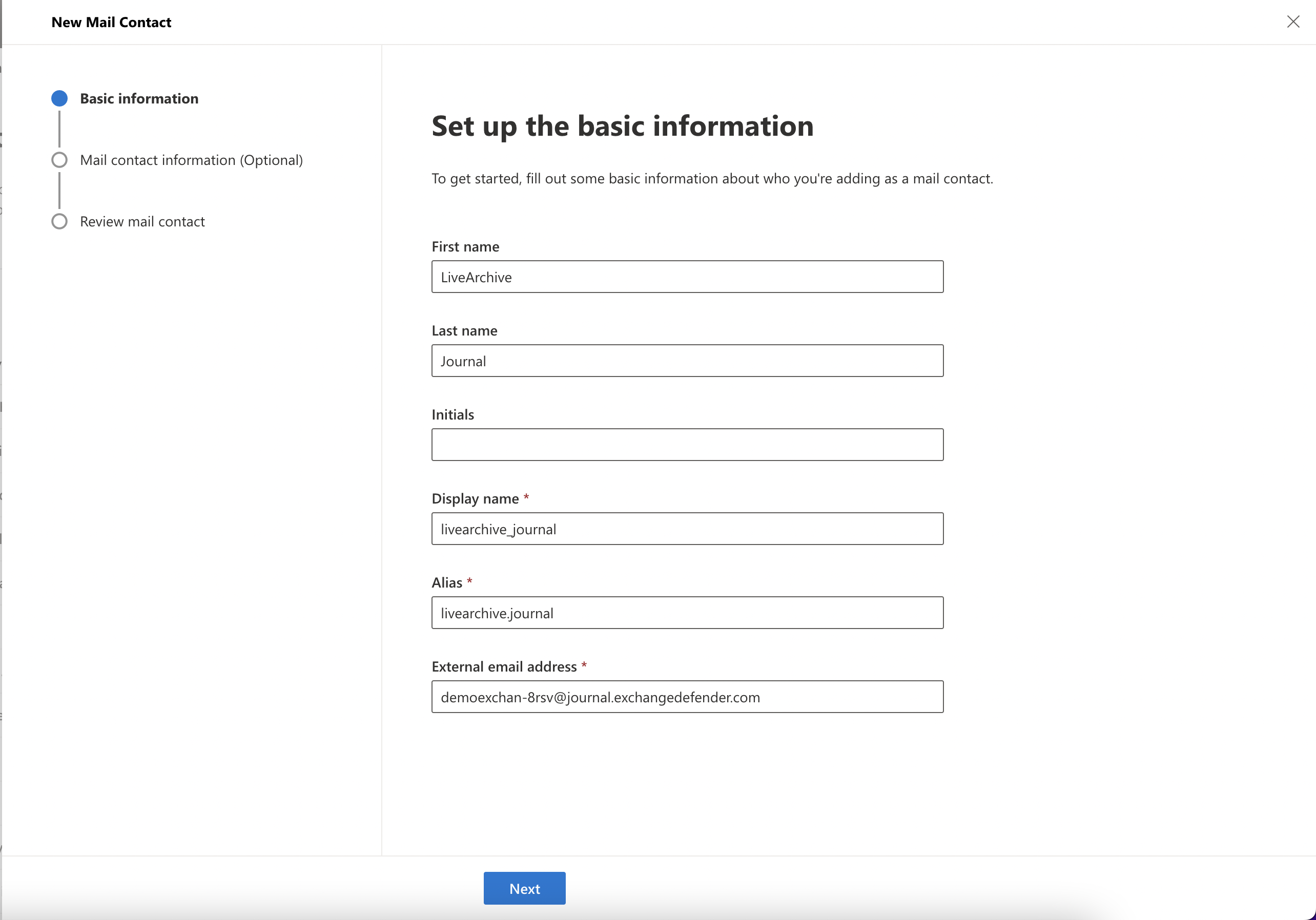
Create a new _Mail Contact_ in the _Exchange_ > _Recipients_ > _Contacts_ exchange admin center
- Fill in any values for the name and alias
- Paste the journal address from admin.exchangedefender.com into the External email address field
- Navigate to Mail flow > Rules within the exchange admin center
-
Click Add a rule and then
- Set the name to LiveArchive Journal
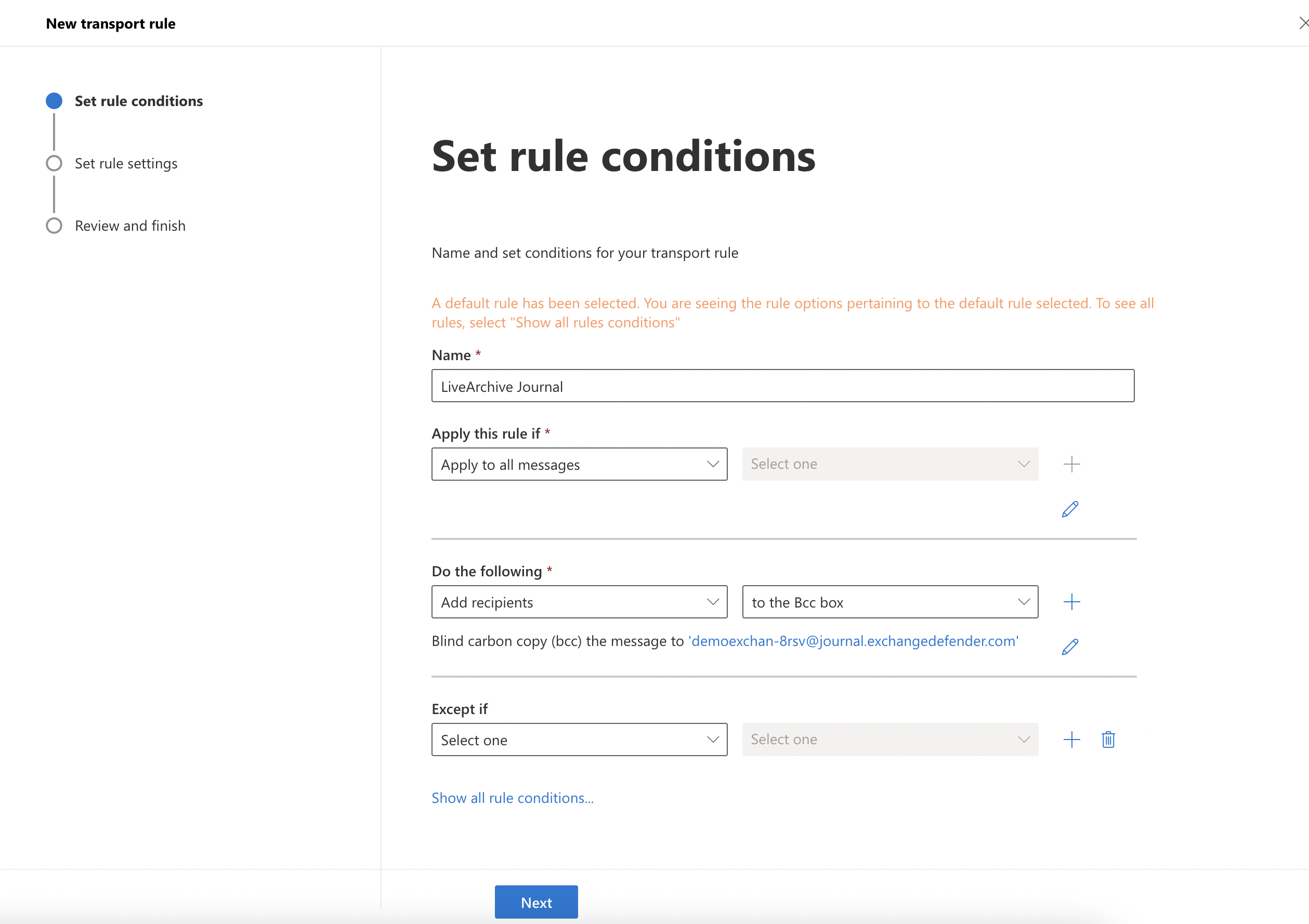
- Change Apply this rule if to Apply to all messages
- Change Do the following to Add recipients to the Bcc box
- Select the newly created Mail Contact from the previous step
- Click Next
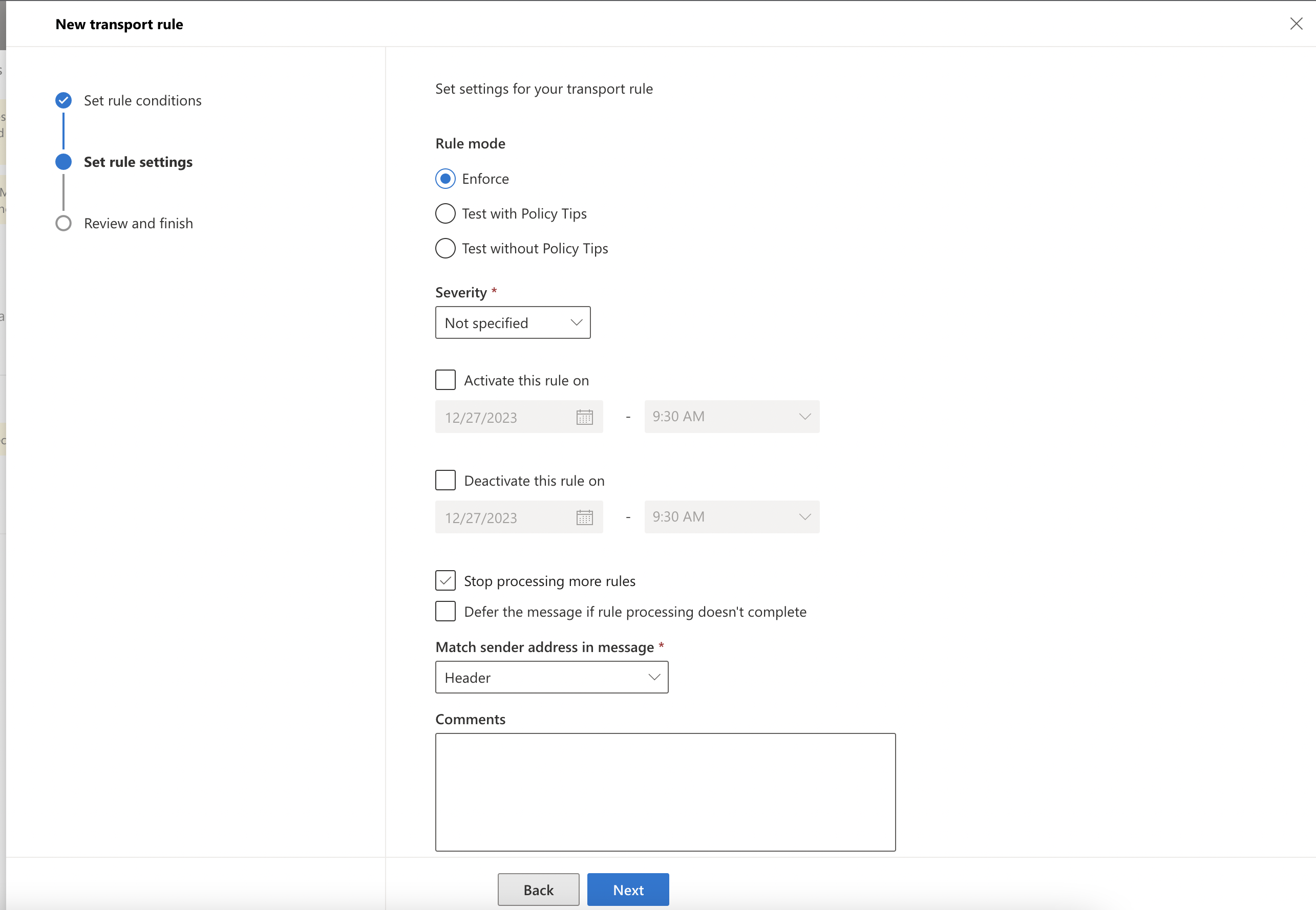
- Leave the defaults for Set rule settings and click Next
- After the rule is created, make sure to Enable the rule
Checklist troubleshooting 
- Public access is enabled
- Database authentication is set to Password authentication
- Disk capacity is not exceeded
- Username and password is correct
- Endpoint and port is correct
- Bucket name is correct
- Bucket region is correct
- Bucket access key and secret access key are correct
- Bucket ACL is disabled
- Bucket capacity is not exceeded
Error messages from admin.exchangedefender.com 
S3 
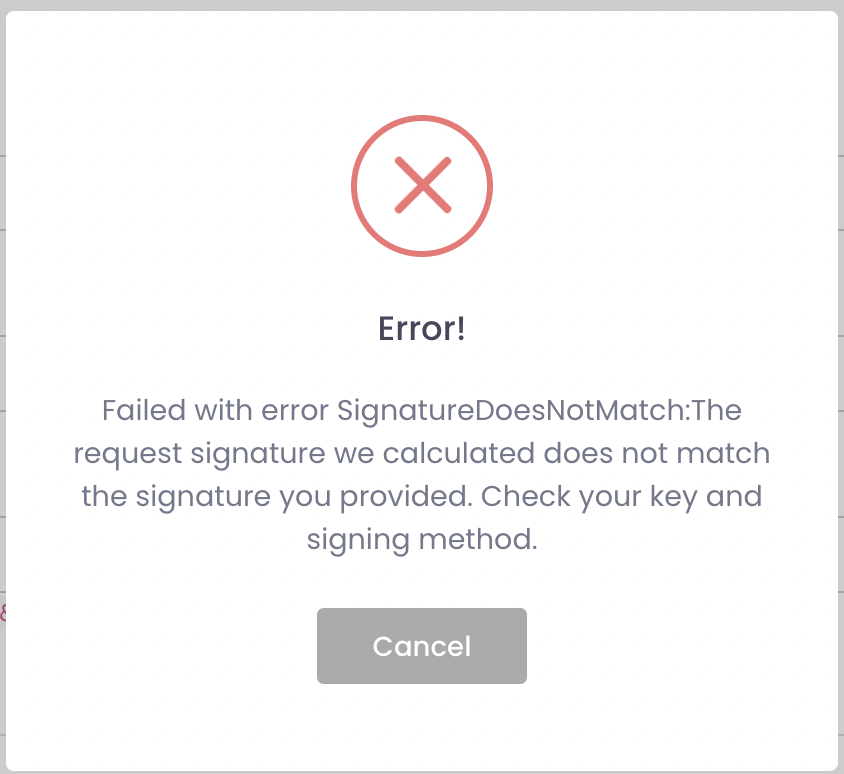
Failed with error SignatureDoesNotMatch:The request signature we calculated does not match the signature you provided. Check your key and signing method
- Invalid secret access key
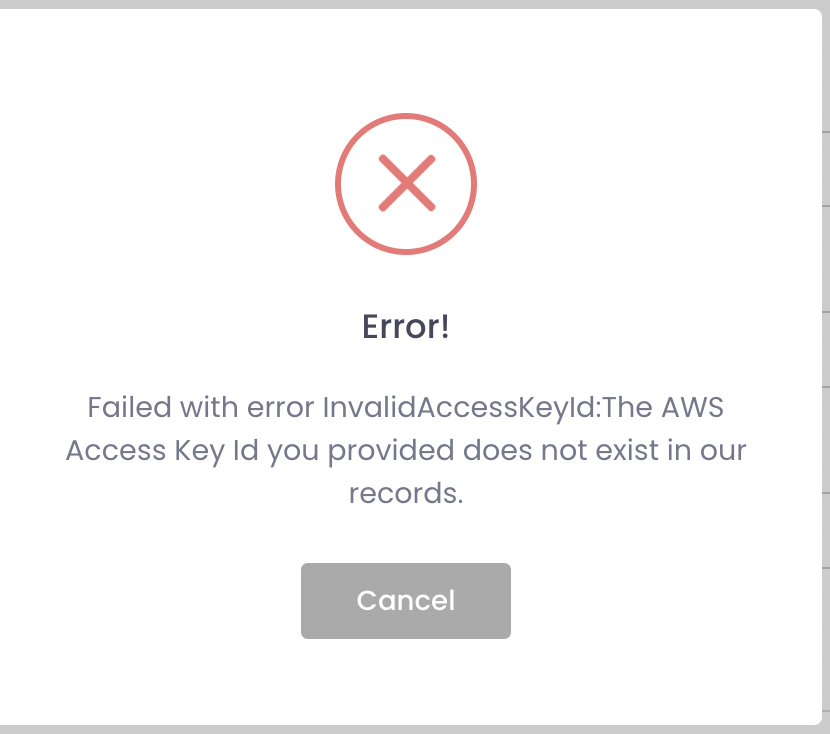
Failed with error InvalidAccessKeyId:The AWS Access Key Id you provided does not exist in our records
- Invalid access key ID
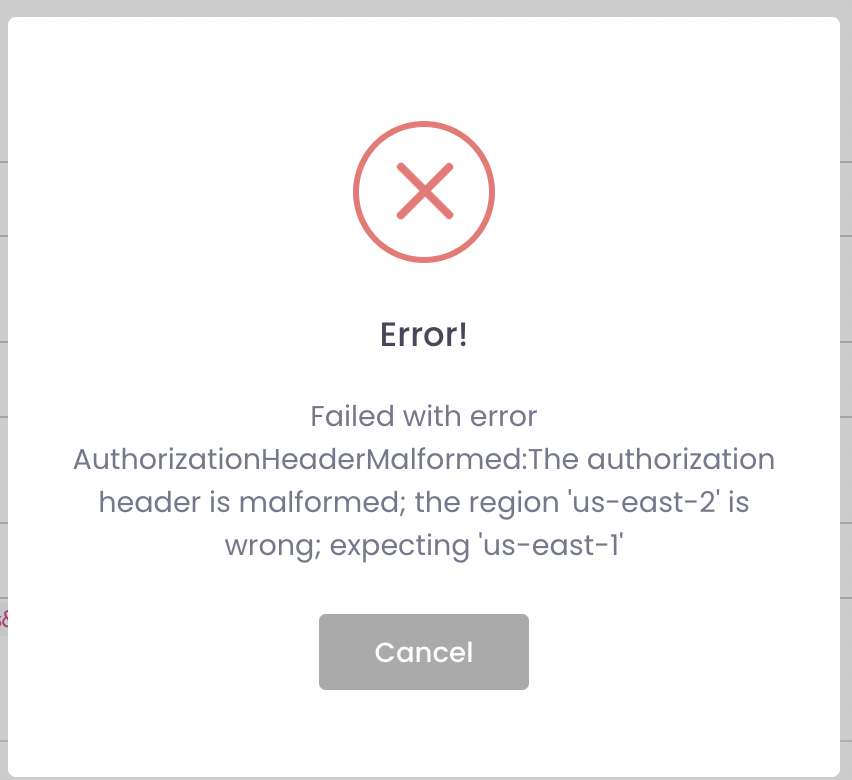
AuthorizationHeaderMalformed:The authorization header is malformed; the region 'us-east-2' is wrong; expecting 'us-east-1'
- Incorrect region selected
RDS 
Failed to connect to mysql: Connection timed out
- Incorrect port, host or firewall rule
Checklist for cost saving 
RDS 
- Ensure public access is available
- Disable any multi-zone replication
S3 
- Block all public access to S3
- Disable bucket versioning
- Enable server side encryption SSE-S3
- Ensure object lock is dsiabled
FAQ 
Messages for alias domains are not being stored
- Make sure all domains that should be archived are enabled on admin.exchangedefender.com
New messages are not appearing in the archive
- Make sure the journal rule is still active on the source mail server
- Make sure S3 and RDS have not exceeded their quotas
- Make sure the Archive Type is correct under the LiveArchive Details on admin.exchangedefender.com. If your journaling rule/mail server embeds the original message as an attachment (like Office 365) to a new message then you should choose the Attached Archive Type.
Messages are not able to load in the UI
- Make sure the database backup and maintenance window is set to a time outside of active hours
- Make sure the S3 bucket has content in it.